
- Portal
- API
1
Create an agent
Open upliftai.org/app/calling and click Create an Agent.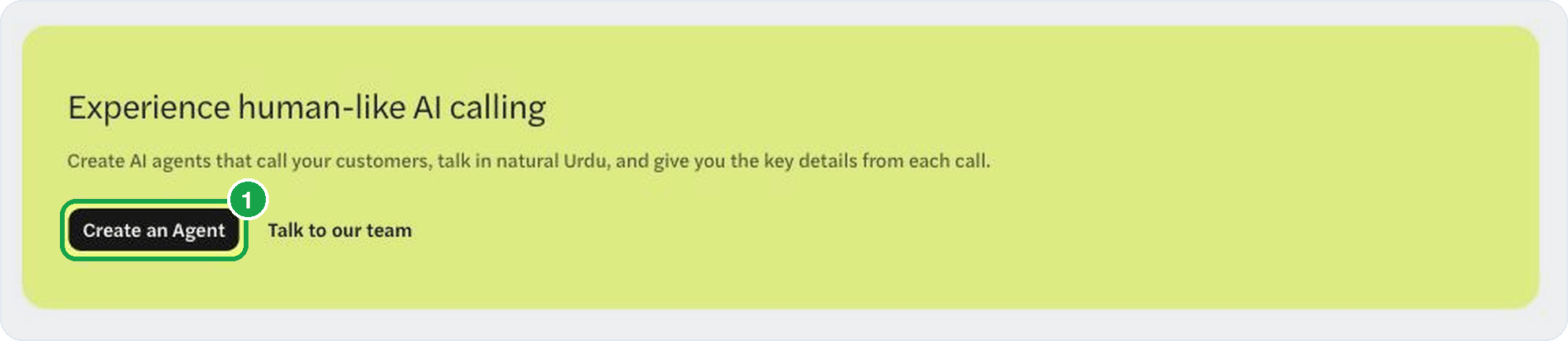
2
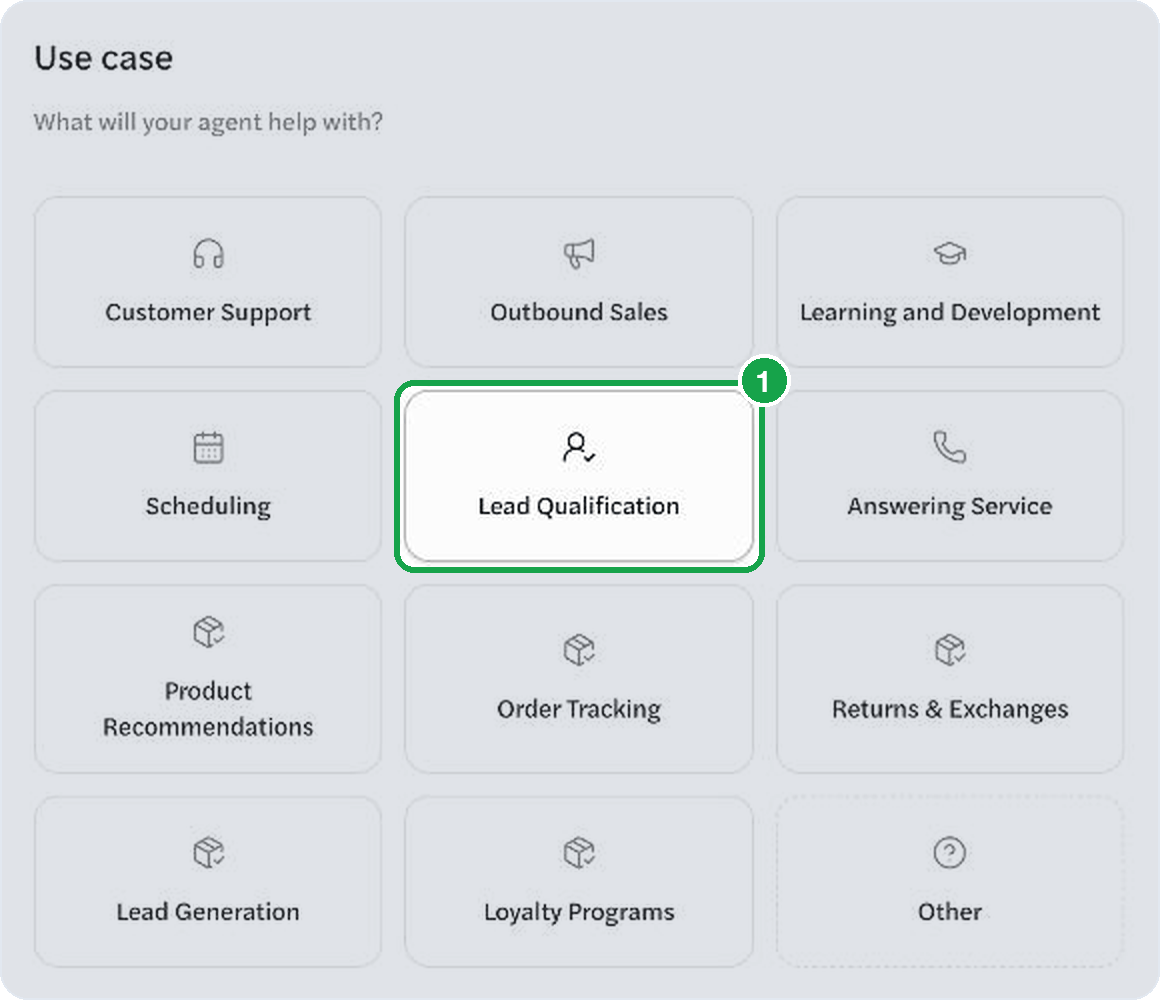
Pick your industry and use case
Choose the closest match on both screens. We tailor the agent’s setup from here.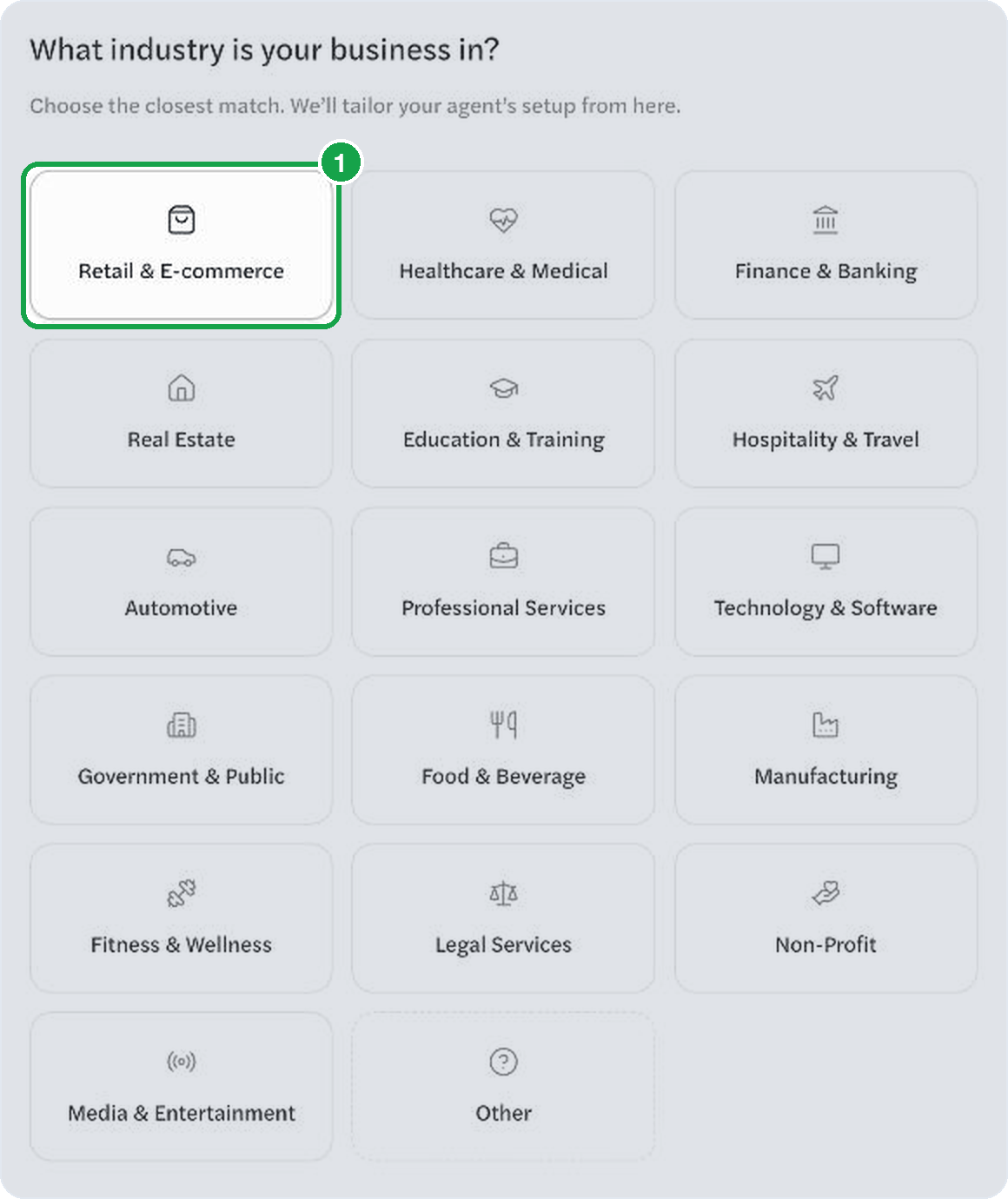
3
Describe the call
Name the agent and write the goal: what the call is for, the facts to pitch, and what the agent must not do. Click Check Goal Clarity, then Create agent.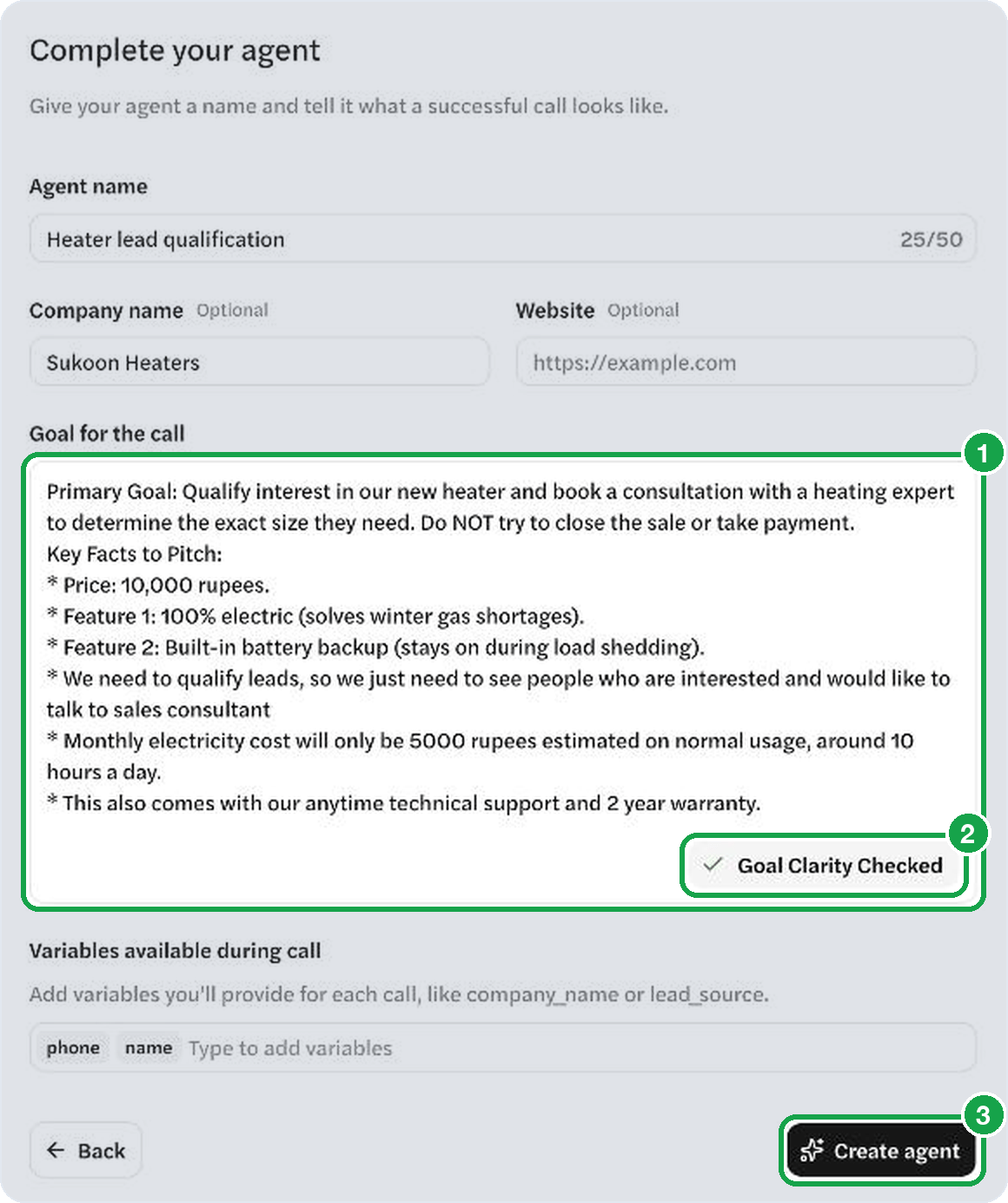
4
Talk to it
Click Test in Browser, then Start Call, and allow the microphone. The agent opens as if it just called you, so play the customer, in Urdu.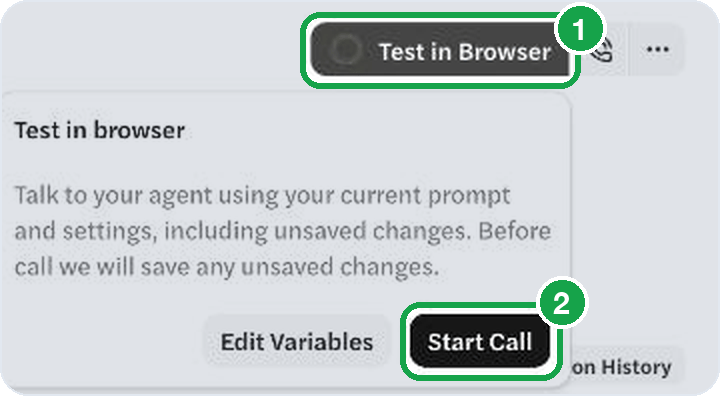
5
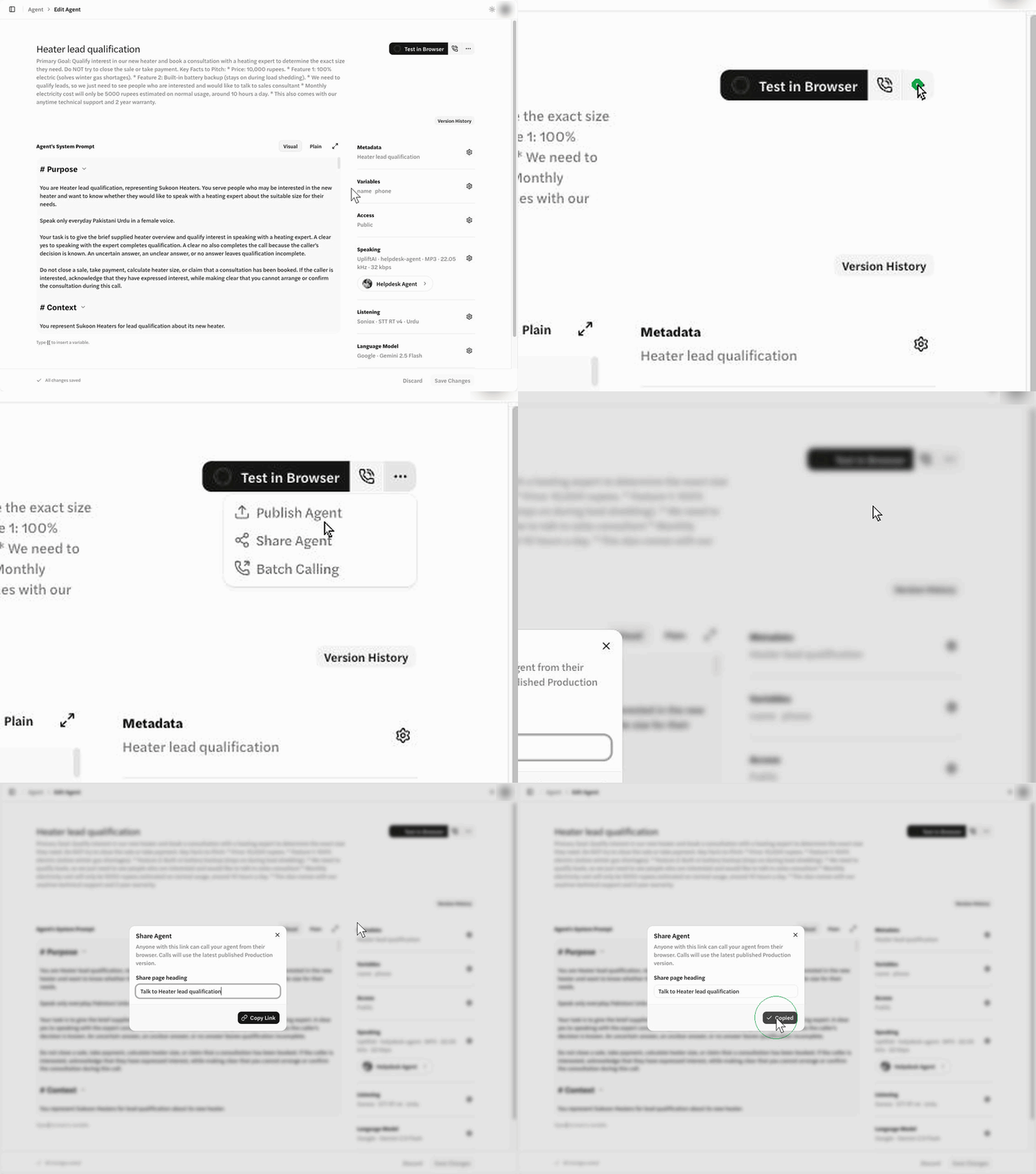
Share it with a link (optional)
Open Access, turn on Public access, click Done, then Save Changes.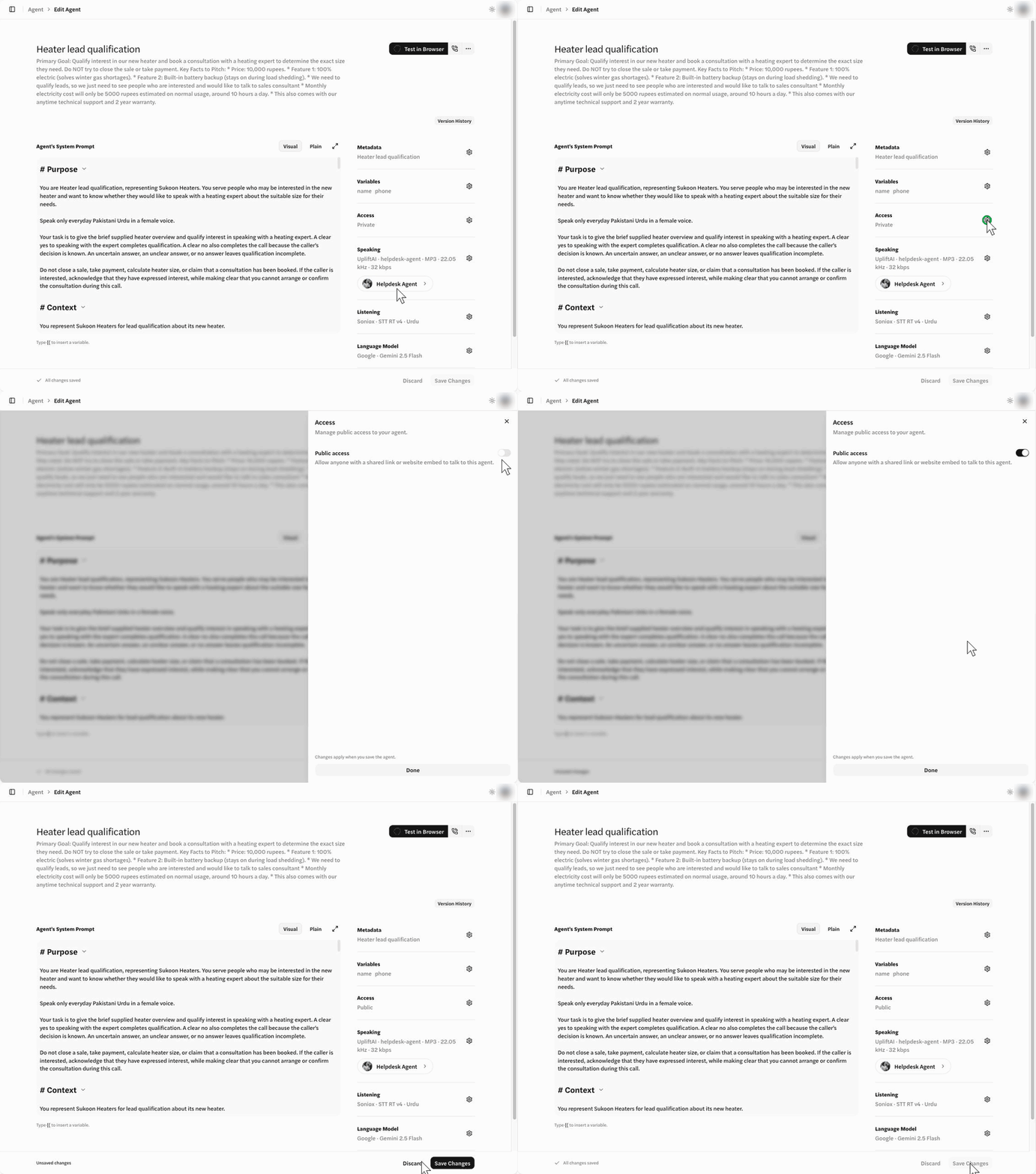
If it doesn’t connect
- “This agent is private” means
publicis off. Update the assistant with"public": true. If you published it before, publish again. Share links read the published version. - “This agent can’t take calls right now” is usually out of credits, which stops the call before it starts. Every account starts with 10 free minutes — see Pricing.
- “Microphone access is blocked” means the browser said no. Allow it in the address bar and click Try again.
Putting it on your own site
The hosted page is for trying things out. On your site, your server mints a token for each visitor with Create a web session token, and the browser joins the call with it. The API key never leaves your server, and the assistant can stay private withpublic: false.
What next
- Call a phone. The same assistant can dial your number — see Quickstart: Phone.
- Write a better prompt. Voice prompting covers what works on a call.
- Skip the prompt writing. Build an assistant from a brief and we write the Urdu prompt for you.
- Understand the call. How it works follows one call from start to finish.